
Decide What the Image Needs to Explain
Before asking for a premium look, write down where the image will appear and what a customer should notice first.
For a social sale graphic, your brief might be simple: the blue pouch is the main subject, the background stays quiet, and the headline has space. Add the price and dates later in your usual image editor, where they are easier to check and change.
For a marketplace listing, check that marketplace’s image requirements first. An exploded arrangement can help explore an advertising concept, but it should not be presented as proof that a real product comes apart that way.
Seasonal preparation is timely. Pinterest’s July 2026 holiday guide advises businesses to launch their festive campaigns early between September and November. That provides a useful seasonal context, not a forecast of your store’s traffic or sales. Read Pinterest’s 2026 guide.
Read the Template Before Generating
Open the Mazee.ai travel-pouch template and look at the existing image beside its prompt.
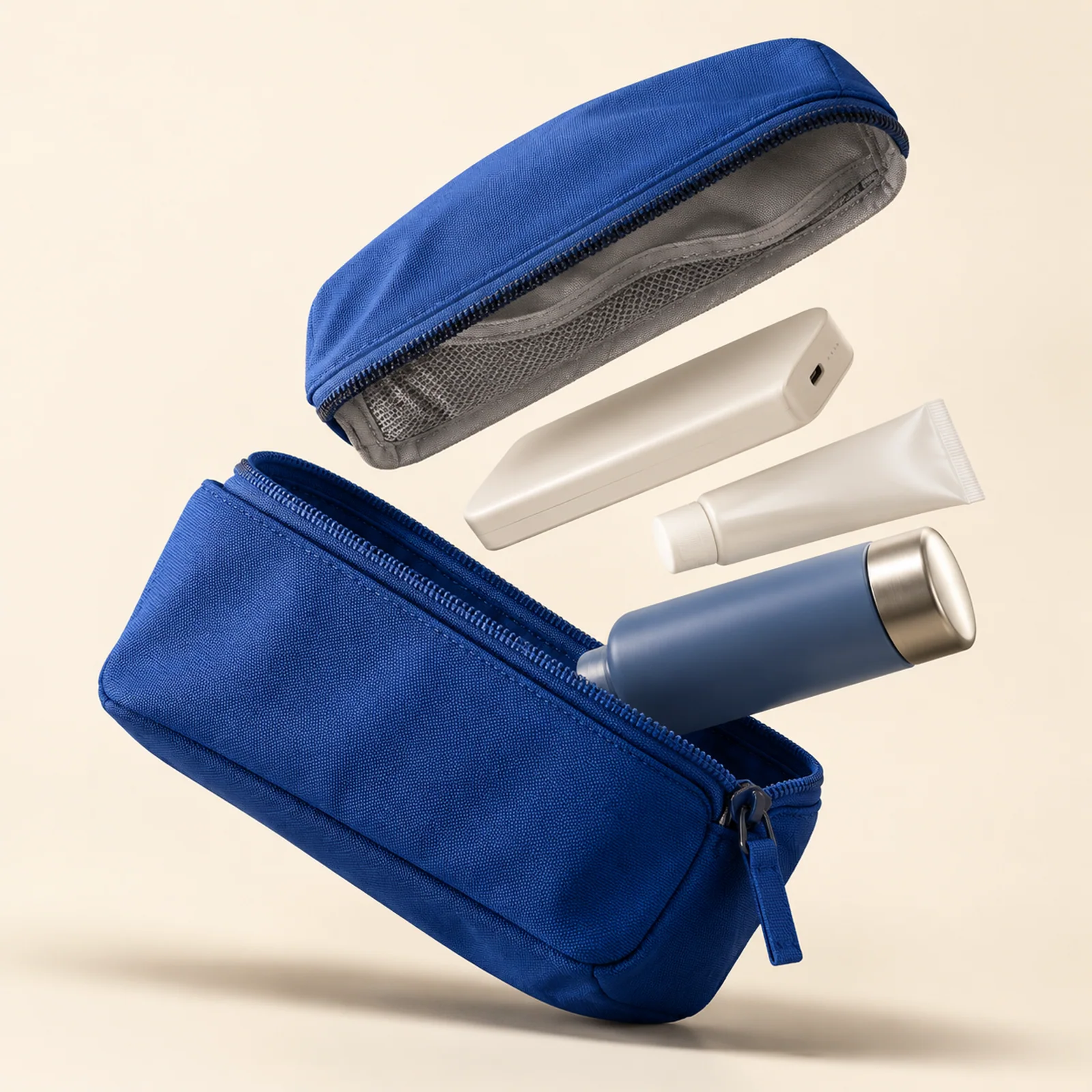
The blue fabric separates clearly from the ivory background. The lid, lower pouch and three everyday objects follow a diagonal arrangement. A shadow below the pouch gives the floating composition a visual anchor.
There are limits worth noticing. The pouch is fictional. Its detached lid says nothing about the construction of your product. The upper-left background offers some room, but you still need to place your actual headline to find out whether it fits.
Here is the original prompt:
Premium editorial product concept: a fictional cobalt-blue modular travel pouch suspended against warm ivory. Its shell, zip, lining and three everyday objects separate into a precise diagonal exploded arrangement, aligned to the same perspective. The main pouch fills sixty percent of the square composition. Sculpted softbox light, crisp fabric weave, grounded shadows, generous empty upper left for later copy. Plausible component count and construction. Unbranded concept, no lettering or watermark.Borrow the relationships in that brief: the subject’s size, the arrangement, the lighting and the space for copy. Those are more useful decisions than adding a long list of quality adjectives.
Check the Studio Settings and Estimate
Choose Open the studio from the preview and sign in if prompted. Check the currently available image model, aspect ratio, resolution and estimated credits before confirming anything.
If you are exploring the composition, check whether the selected model offers a smaller resolution and what it costs. Review the arrangement before paying for another version. More pixels will not automatically repair incorrect product construction.
Mazee.ai places the original prompt and preset together in the template preview, and the studio shows an estimated credit cost before confirmation. That gives you information to review before you submit a task. Check Pricing for current one-time purchase options and validity periods rather than assuming a subscription is necessary.
Add One Seasonal Detail at a Time
If the blue-and-ivory palette works for your brief, try changing the background before changing everything else.
The following is a suggested instruction to try, not the tested prompt behind the image shown above:
Keep the blue pouch as the main subject. Add one small burgundy ribbon in the lower-right background. Keep the upper-left background empty for copy. No lettering.The intention is to keep decoration behind the product and preserve space for a headline. Inspect the new result to see whether it follows that instruction.
If the ribbon takes over, remove it or reduce the decoration. If the pouch becomes too small, address its size before changing the lighting. Working on one problem at a time makes it easier to decide whether another generation is worthwhile.
Match the Final Image to What You Sell
Before publishing, compare the result with the real item: colour, zip placement, pocket count, material, branding and included accessories. Objects shown beside a pouch should not imply that they are included when they are sold separately.
If you have a real product photo, check whether a currently available model supports a reference image. A reference is not a guarantee of exact product fidelity. When fidelity matters, consider keeping the real product photograph in your usual image editor and using AI to explore the surrounding visual direction. Compositing and typesetting in that workflow happen in the external editor; they are not automatic Mazee.ai features.
Add the offer, dates and logo as separate editable elements. A small price correction should not require generating the product again.
Check It on a Small Screen
Shrink the finished layout to roughly the size it will occupy in a mobile feed. Can you still identify the product? Is the headline readable without covering its important details? Do the offer and destination page agree?
Return to real photographs and product information whenever construction or specifications are uncertain. A more attractive image is not, by itself, evidence of better sales.
If a generation submission disconnects, check the original task in History before starting another one. Download the saved result, then complete the layout and factual checks. Read the download guide.
Start with the original pouch template. Understand its subject, lighting and space for copy, then apply those decisions to your own product brief.