
Give the Cover One Story to Tell
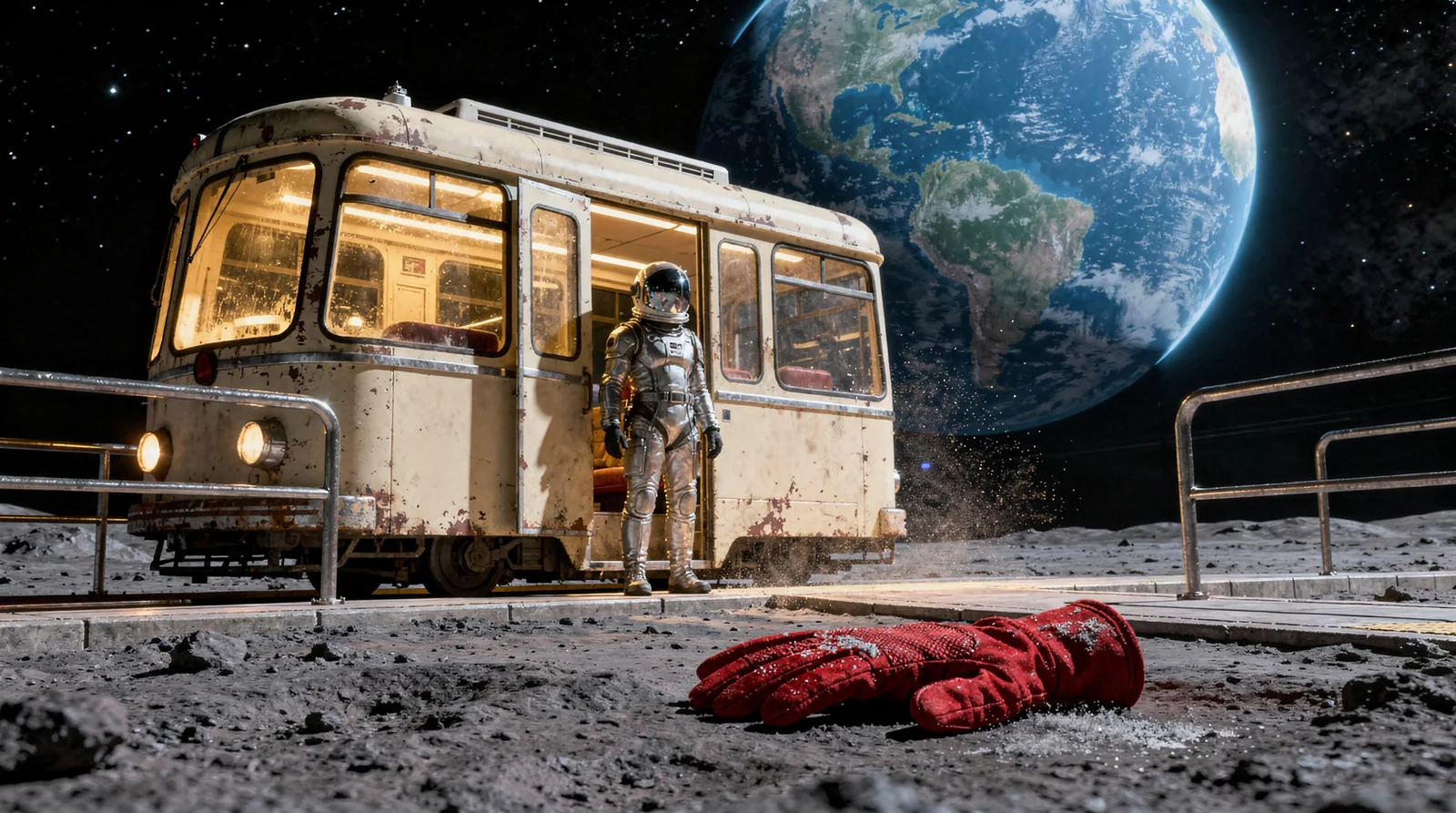
Suppose your story concerns the last tram on the Moon. The relationship between the lit vehicle and the commuter can carry the main scene. A glove on the platform adds a question: who left it there?
Once that relationship is clear, decide how much space Earth and the surrounding landscape need. Otherwise, every interesting addition creates another thing the viewer must understand.
The same approach works for a person waiting outside a door, a letter on an empty chair or a light in an abandoned room. Decide what is happening before listing how it should look.
Open the Template and Review Its Preset
Open the lunar-tram template, read the original prompt and choose Open the studio. Sign in if needed, then review the available model, aspect ratio, resolution and estimated credits.
The original example uses a 16:9 composition. For a horizontal cover, check whether that ratio is supported by the selected model. If you need a vertical cover, plan the subject positions again rather than assuming a crop will preserve the story.
Opening the template does not start a paid generation. Review the studio confirmation before submitting. The template is an existing example, and another task is not guaranteed to reproduce it.
Read the Image at Three Distances
In the foreground, red gloves contrast with the grey surface and provide a small narrative clue.
In the middle distance, amber windows draw attention to the tram. The commuter by its open door gives the scene a human relationship.
In the background, Earth establishes the setting. It is also large and bright enough to compete with the commuter. This is a useful scene to study, not a cover with a demonstrated click-through improvement.
There is another detail to check honestly. The original prompt says A single red glove, but the existing preview shows two gloves. An atmospheric image can still miss a specific instruction. Count objects and inspect lettering and anatomy rather than treating a good overall mood as proof that every detail is correct.
Here is the original prompt:
Cinematic science-fiction keyframe: an old cream-colored tram with warm amber windows waits at a tiny lunar platform beneath an enormous blue Earth. One adult commuter in a practical silver pressure suit stands by the open tram door. A single red glove lies in sharp foreground on the dusty platform, a quiet narrative clue. Wide 35mm composition, cold lunar shadows, delicate suspended dust, controlled highlights, physically coherent scale and clear subject hierarchy. Original fictional world, no text, trademarks or watermark.Make Room for the Title Before Adding Detail
If your title is “Who Missed the Last Tram?”, try placing it in your usual image editor before requesting another version. The tram fills much of the left side; Earth and the railing occupy the right. A dark area is not automatically useful headline space.
Typesetting and cropping here are external editing steps. They are not changes already made to the sample or automatic features being claimed for Mazee.ai.
If a new composition is necessary, this is an untested direction to try in place of the original description of the enormous Earth:
Keep Earth smaller in the upper-right background. Leave a clear dark area in the upper left for a short title. Keep the tram and commuter as the main focal point.Change the background emphasis and title space first. Leave the character, vehicle and lighting alone so you can judge the effect of that decision.
If the story requires exactly one glove, handle that requirement separately. Do not describe the existing image as having met it.
Review a Small Copy Before Spending Again
After downloading the image, make a copy in your image editor and reduce it to about 320×180 pixels for inspection. This is a convenient working size, not a publishing platform’s specification.
Look at it without zooming in. Can you identify the commuter and tram? Do the gloves remain a readable clue? Does the title cover the person at the door? Can you still understand the story you intend to tell?
If the composition already works and only an object count needs correction, consider whether a local edit in an external editor is sufficient. Generating the entire image again costs credits and may introduce different problems.
Before another generation, write down the problem in one sentence: “Earth is drawing too much attention; reduce its size.” A specific reason makes the next spending decision easier to evaluate.
Keep the Settings Behind the Image You Choose
Mazee.ai’s template preview gives you an existing image, its prompt and preset as a starting point. The studio provides the available settings and an estimated credit cost before confirmation. Successful work can be downloaded from the private library; task details let you reuse settings for another attempt after reviewing them.
If the connection drops during submission, check the original task before creating a replacement. Read the interrupted-submission guide.
The useful lesson in this scene is how a character, a vehicle and a small clue can suggest a story. Make that relationship readable on a small screen before adding another layer of detail.
Open the original lunar-tram template, or read the original prompt alongside its image.