AI Product Photo Background Change: Perfume Label Test | Mazee.ai
Skip to content
Mazee.ai
ExploreModelsPricingResources
Sign inStart creating
Menu
ExploreModelsPricingResourcesSign in
  1. Home
  2. Creation guides
  3. AI Product Photo Background Test: Did the Perfume Label Change?
简体中文

AI Product Photo Background Test: Did the Perfume Label Change?

By Mazee.aiFirst published: November 21, 2026

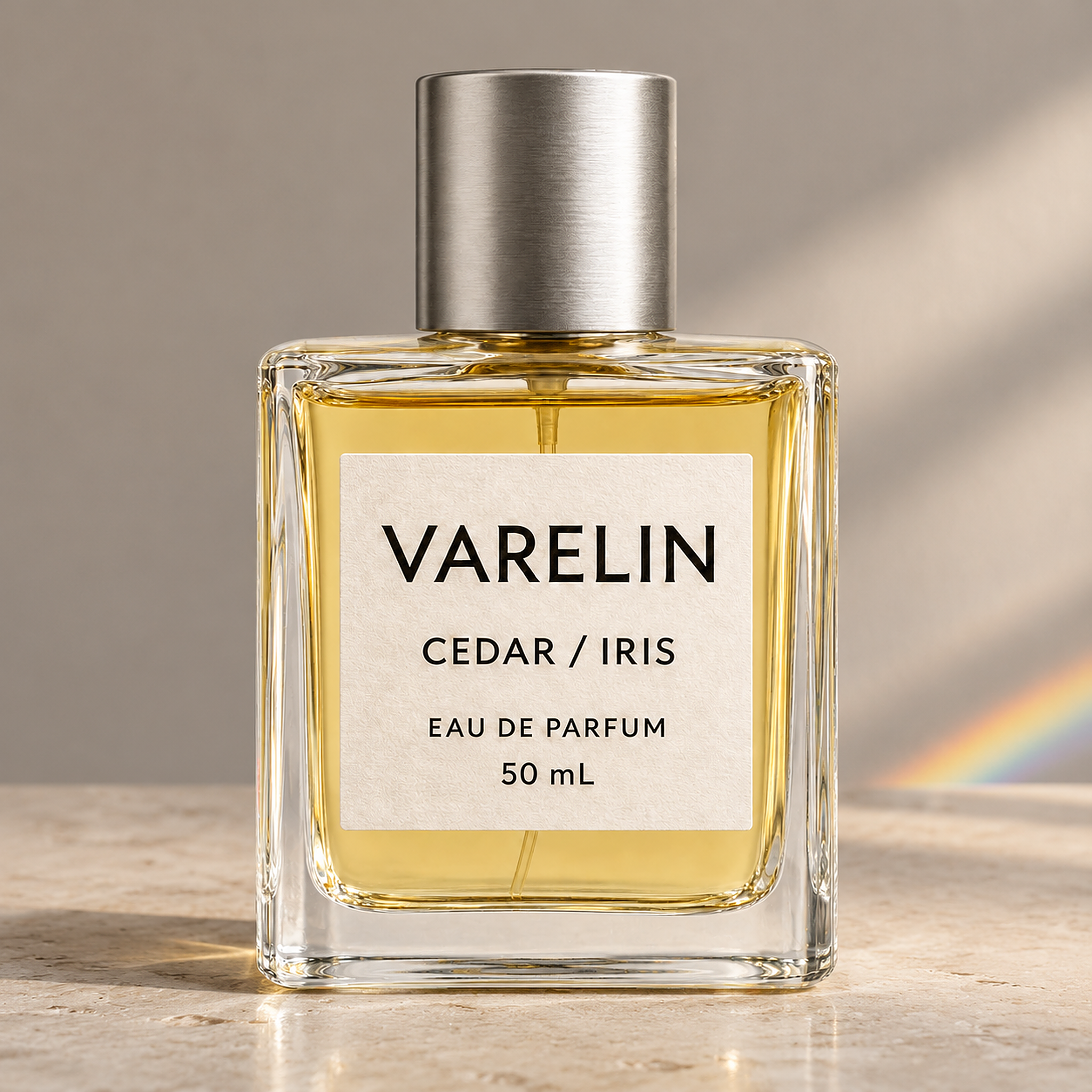
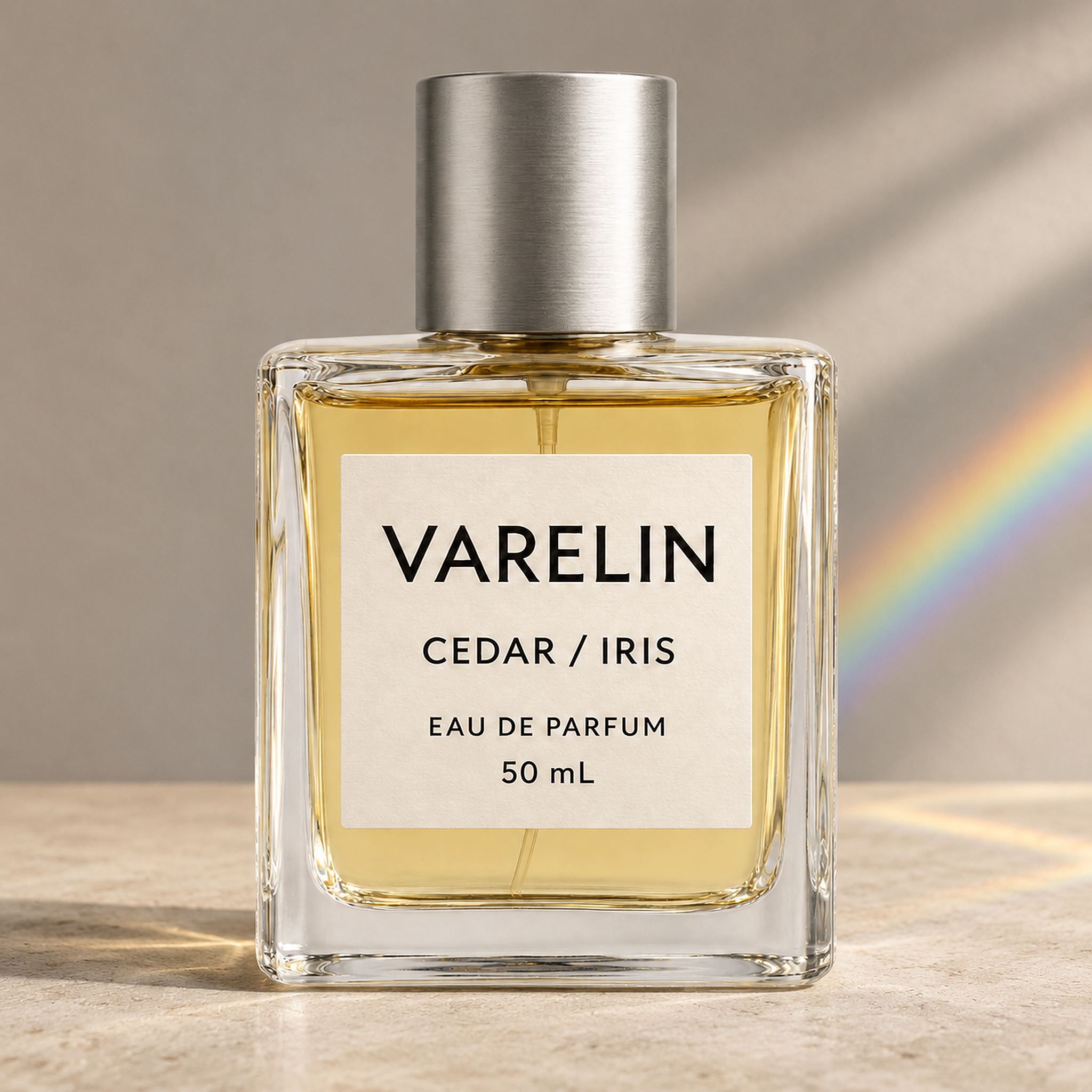
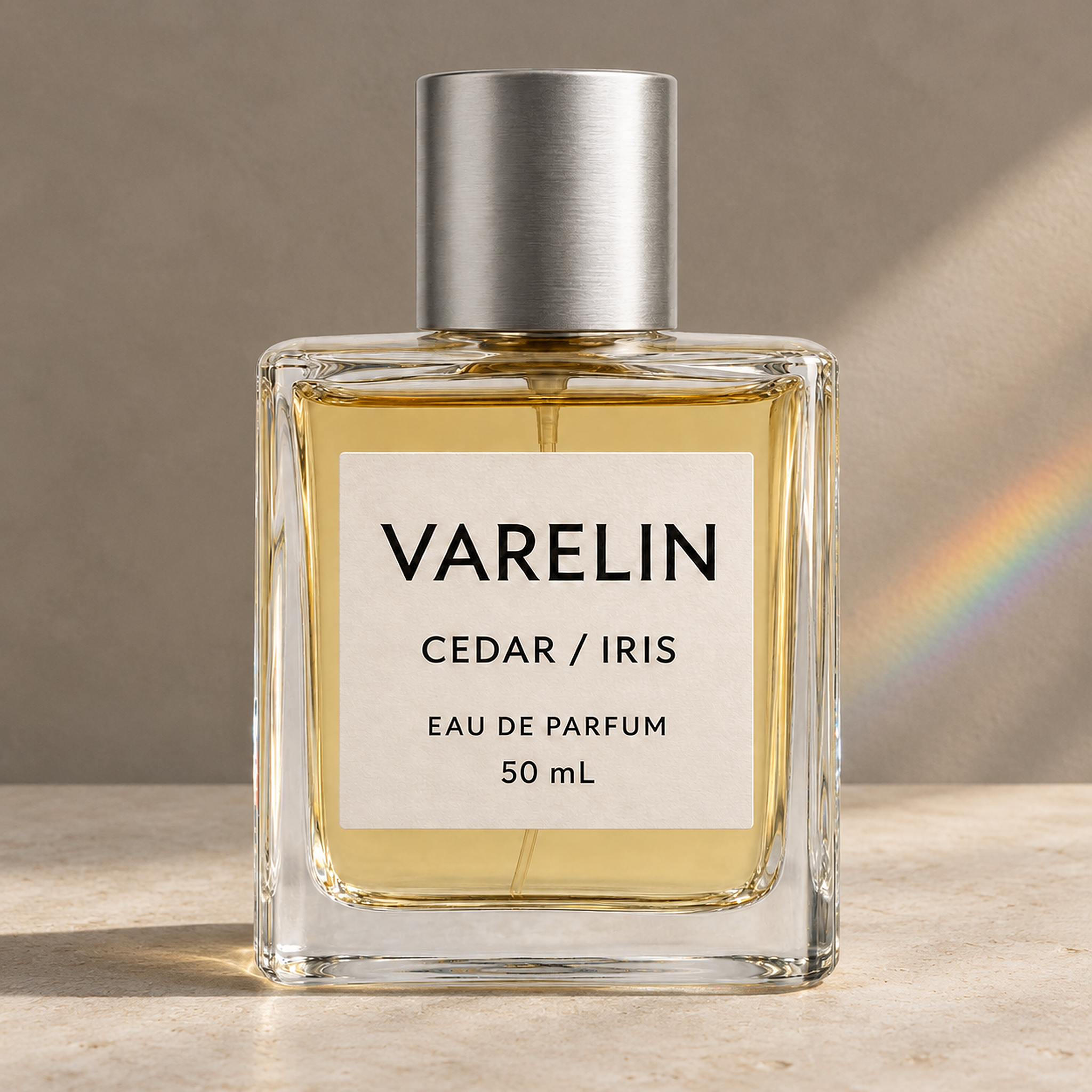
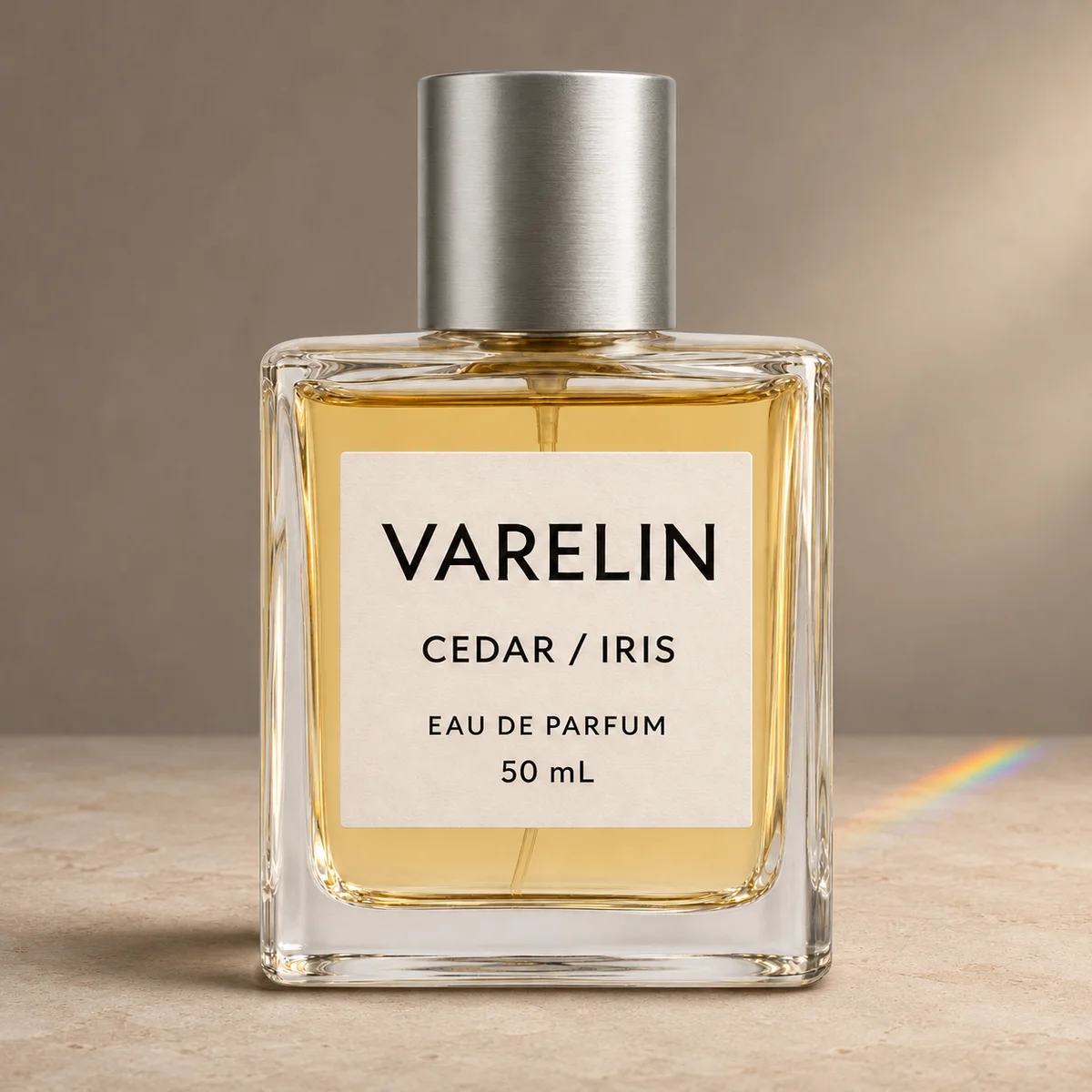
We changed the background of the same perfume bottle three times in Mazee.ai. All three results kept the four label lines readable, including 50 mL. Up close, the edges of the lettering, the paper texture and the glass highlights changed. Here's how to check both the text and the product itself.

Mazee.ai background edit of the VARELIN test bottle on pale limestone
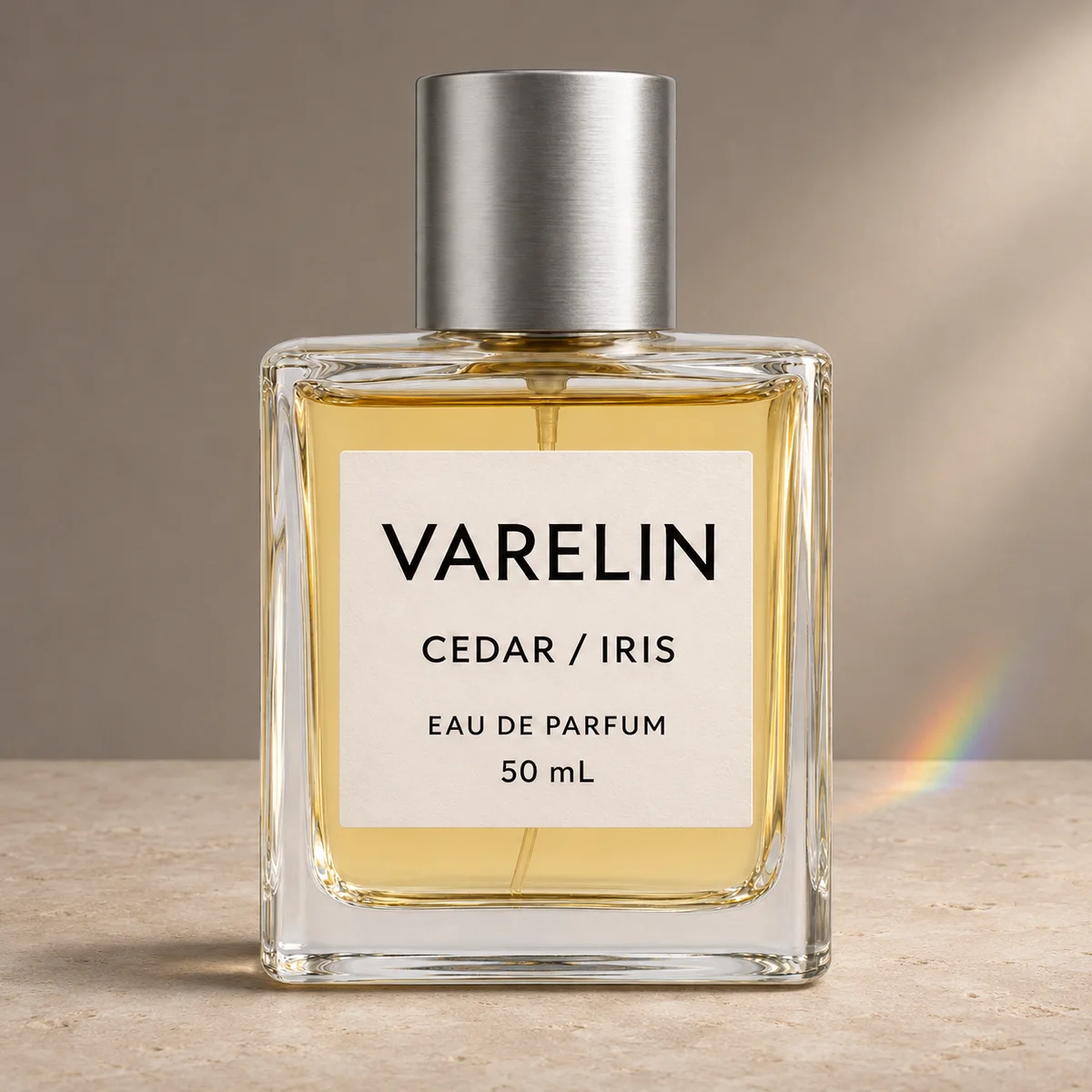
The input was a transparent PNG of a fictional bottle created with ChatGPT's ImageGen. The stone and prism lighting are based on Mazee.ai's Prism perfume concept.
On this page
  1. What stayed the same in all three edits?
  2. See the three outputs and label close-ups
  3. How to change the background without re-drawing the label
  4. How to check whether your label changed
  5. The exact prompt used in the test

What stayed the same in all three edits?

We ran GPT Image 2.5 Flare in Mazee.ai Studio with one reference image, the same prompt, a square frame and the 2K setting. Each run returned a 2048 × 2048 PNG and cost 10 creation credits, for a total of 30. We kept every output in submission order.

  • Label text. Each result read VARELIN, CEDAR / IRIS, EAU DE PARFUM and 50 mL, in the original order. Spelling, casing and the slash matched.
  • Bottle shape. All three kept the front-facing view, the rectangular glass bottle, the cylindrical silver cap and approximately the same liquid level by visual inspection.
  • Surface details. Highlights shifted on the cap and along the glass edges. Some letters gained a thin light edge and the paper looked smoother or rougher depending on the run.
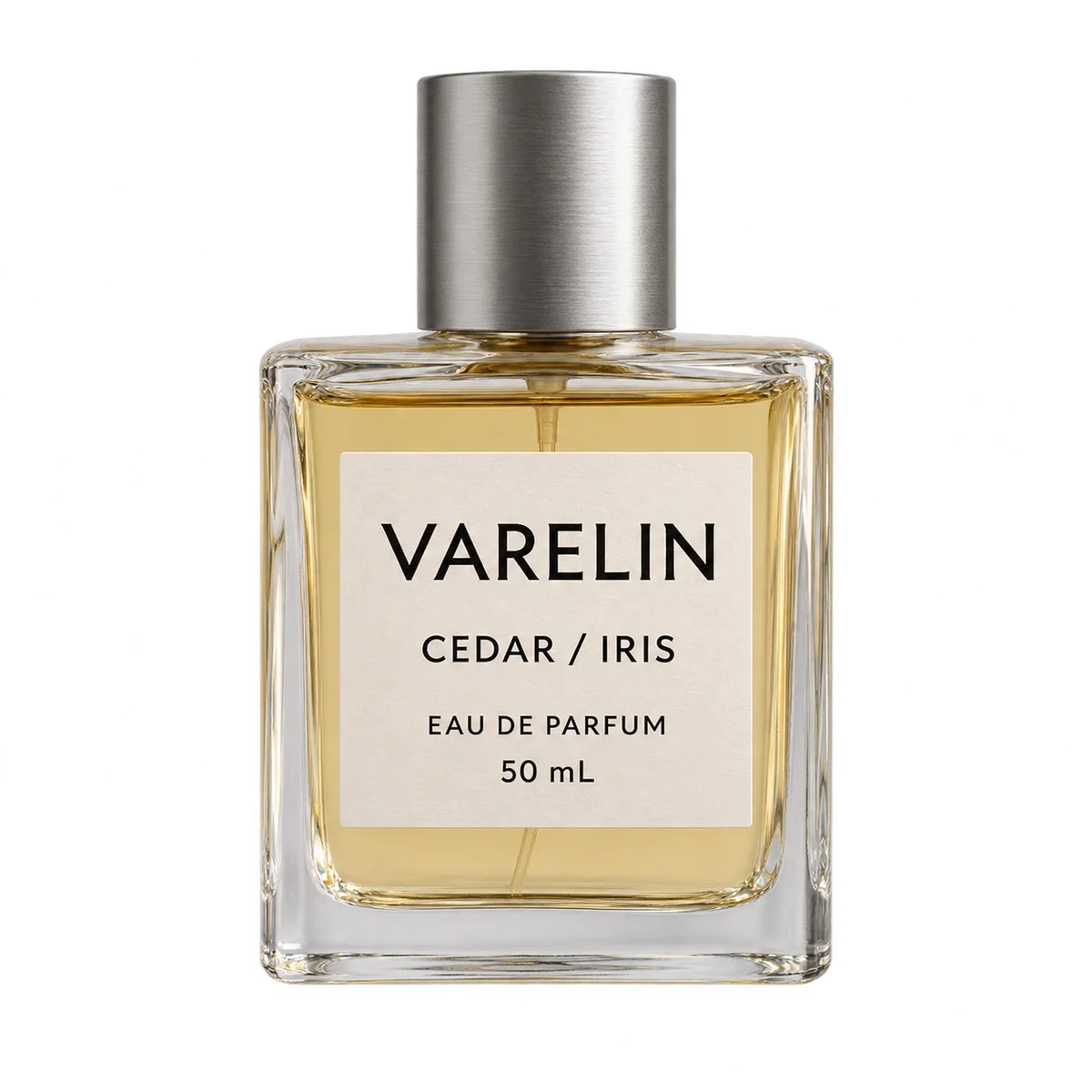
The transparent source bottle with its original four-line label
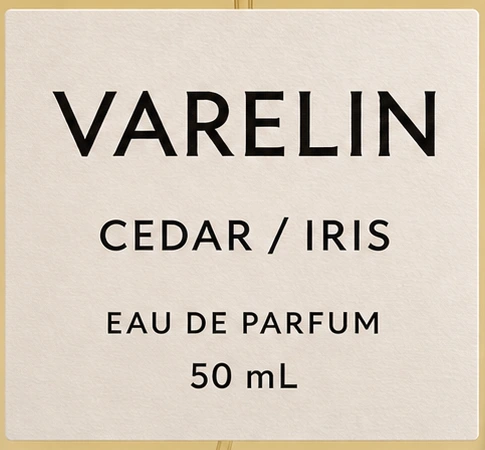
Close-up of the source label before background editing

See the three outputs and label close-ups

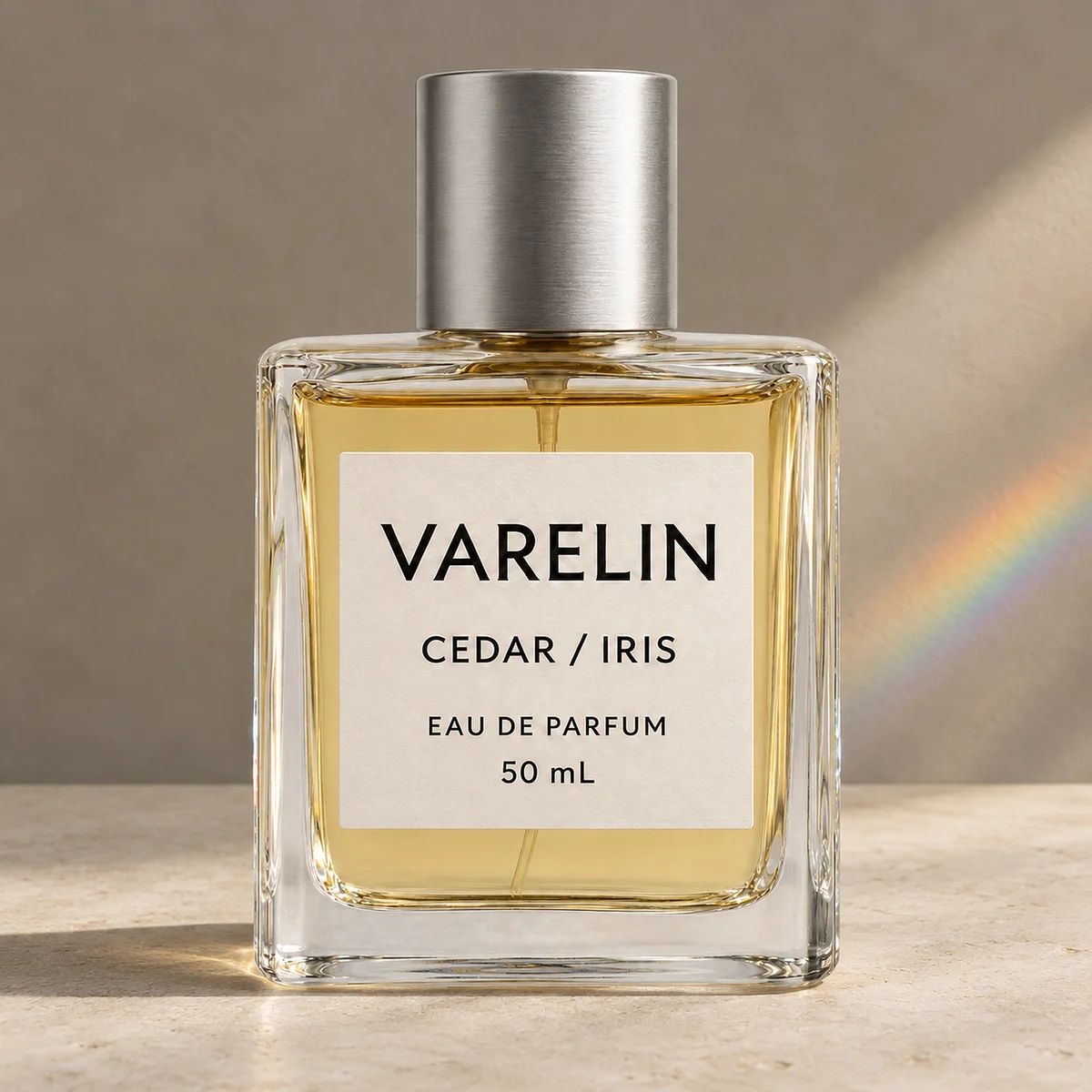
Run 1. Look at the thin light edge around the black lettering and the more pronounced paper grain. The new scene adds a strong reflection under the bottle. Open the 2048 × 2048 original.
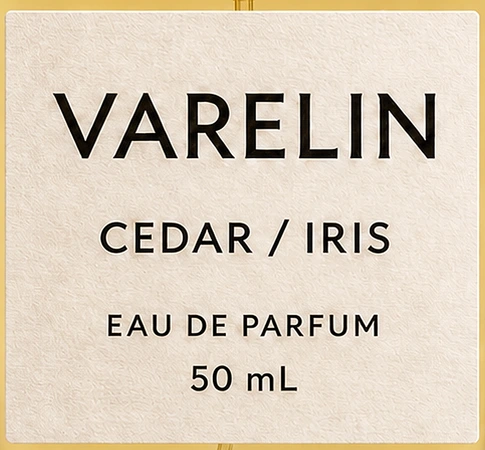
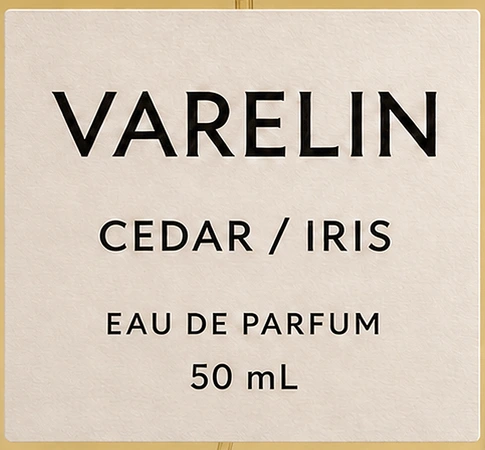
Close-up of run 1 with the label still reading 50 mL

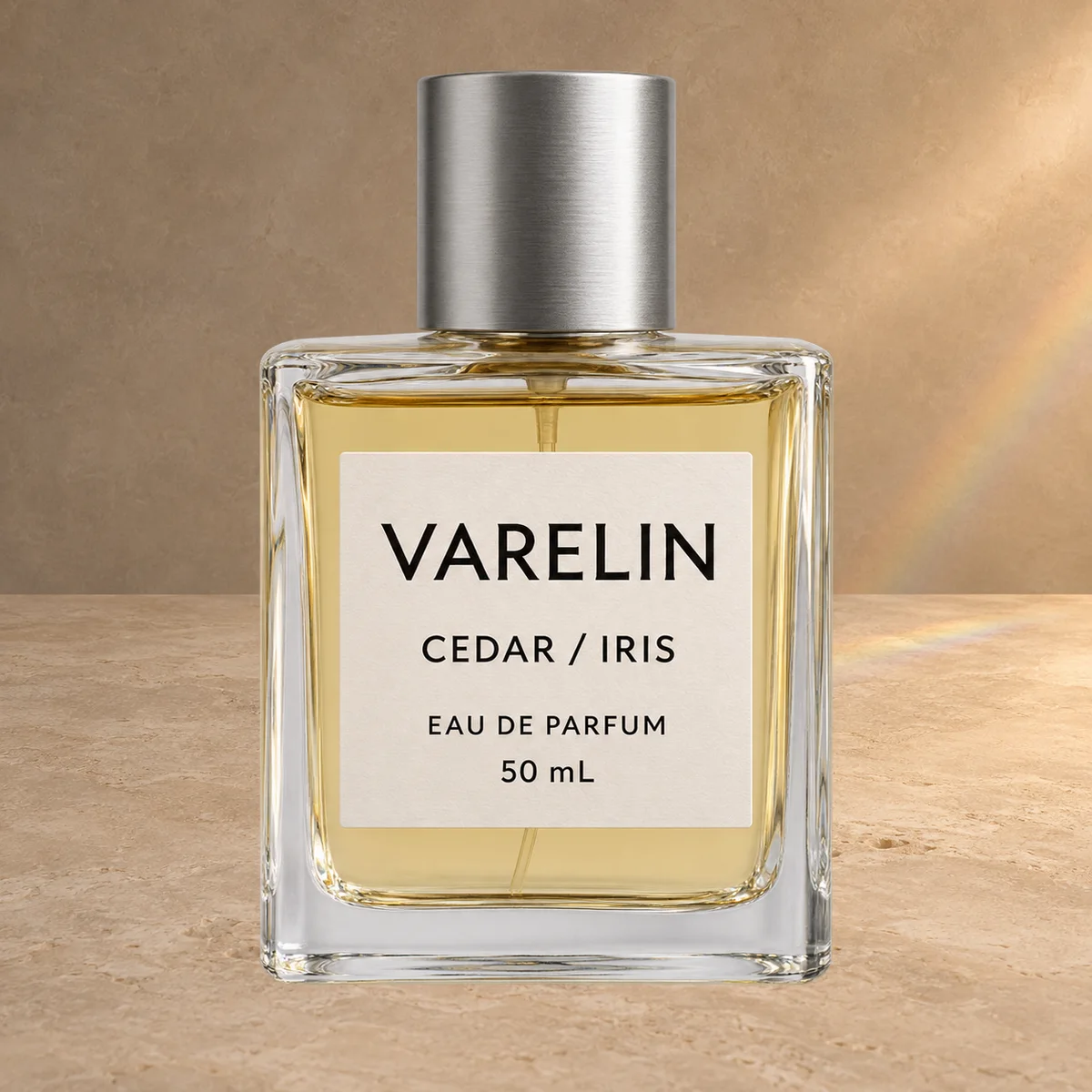
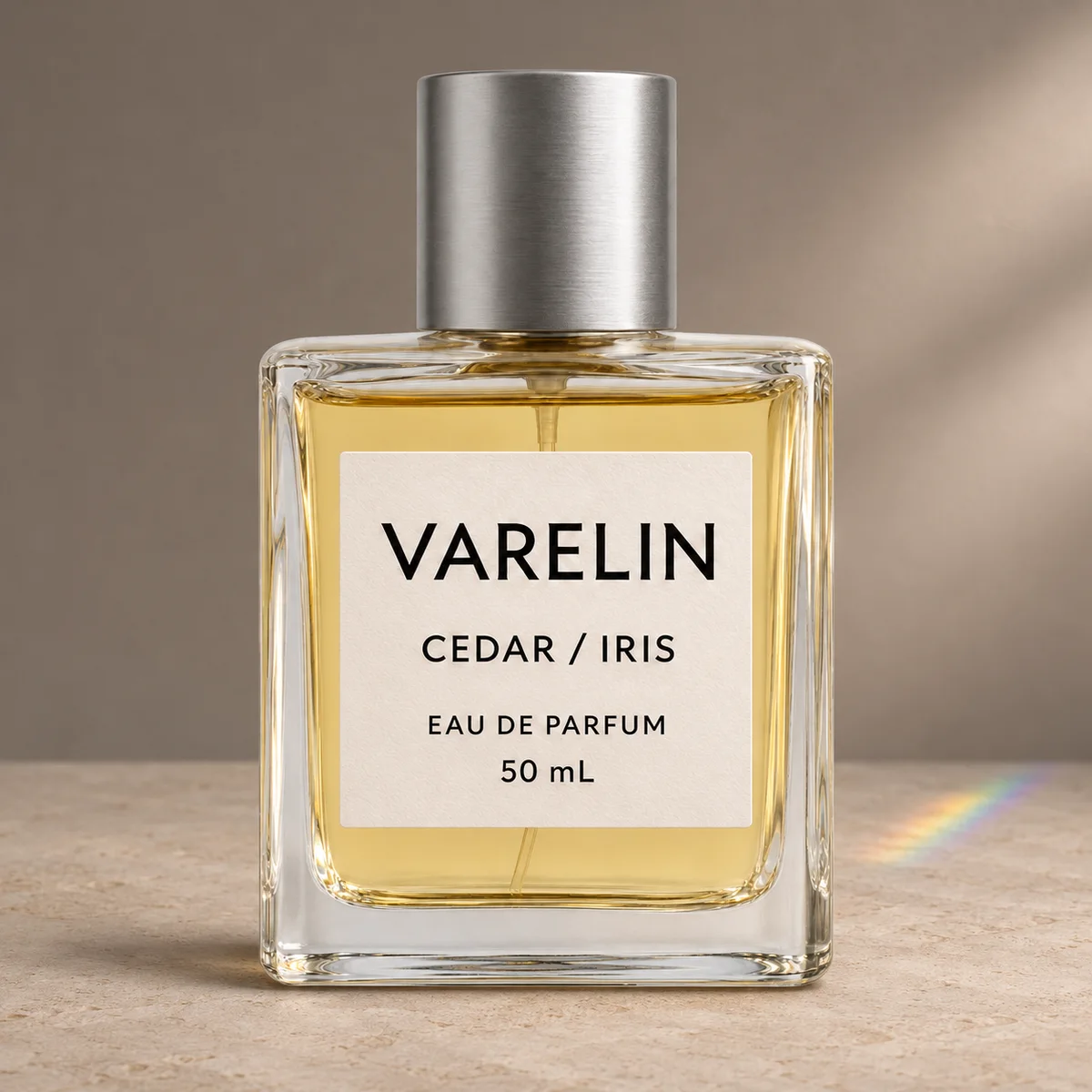
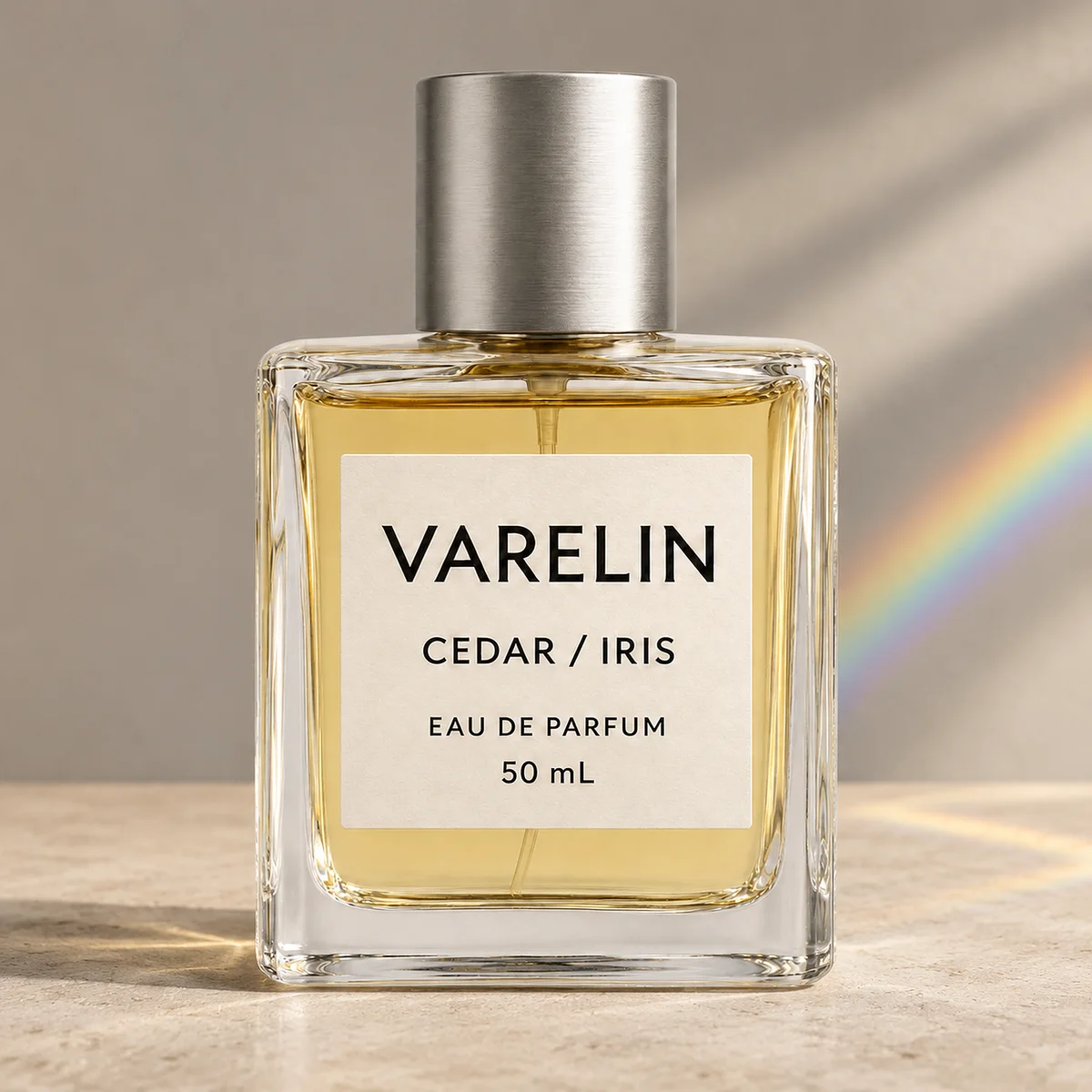
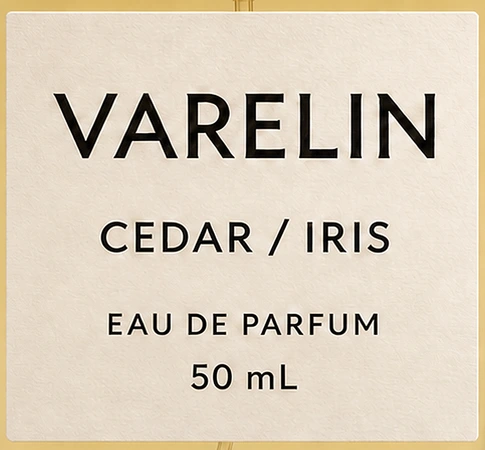
Run 2. All four lines still read correctly. The paper looks smoother than in run 1 and the rainbow is concentrated to the right of the bottle. .
Mazee.ai

Creative tools

  • Image
  • Video
  • Models
  • Pricing & credits
  • Creation guides

Use cases

  • AI Ecommerce
  • AI Design
  • AI Game
  • AI Film
  • AI Art
  • AI Short Drama

Featured models

  • MiniMax H3
  • Seedance
  • Seedream 5.0 Flash
  • GPT Image 2.5 Flare
  • Nano Banana 2
  • Seedance 2.5
  • Kling 3.0

Support and policies

  • Help
  • Support requests
  • Policies & contact
  • Acceptable use policy
  • Privacy notice
  • Service terms notice
  • Storage notice
  • Email support: support@mazee.ai

Mazee.ai is an independent interface for third-party AI models. Model names describe integrations; we are not affiliated with or endorsed by their creators.

Open the 2048 × 2048 original
Run 2 of the perfume photo background edit in Mazee.ai
Close-up of all four labels lines in Mazee.ai run 2

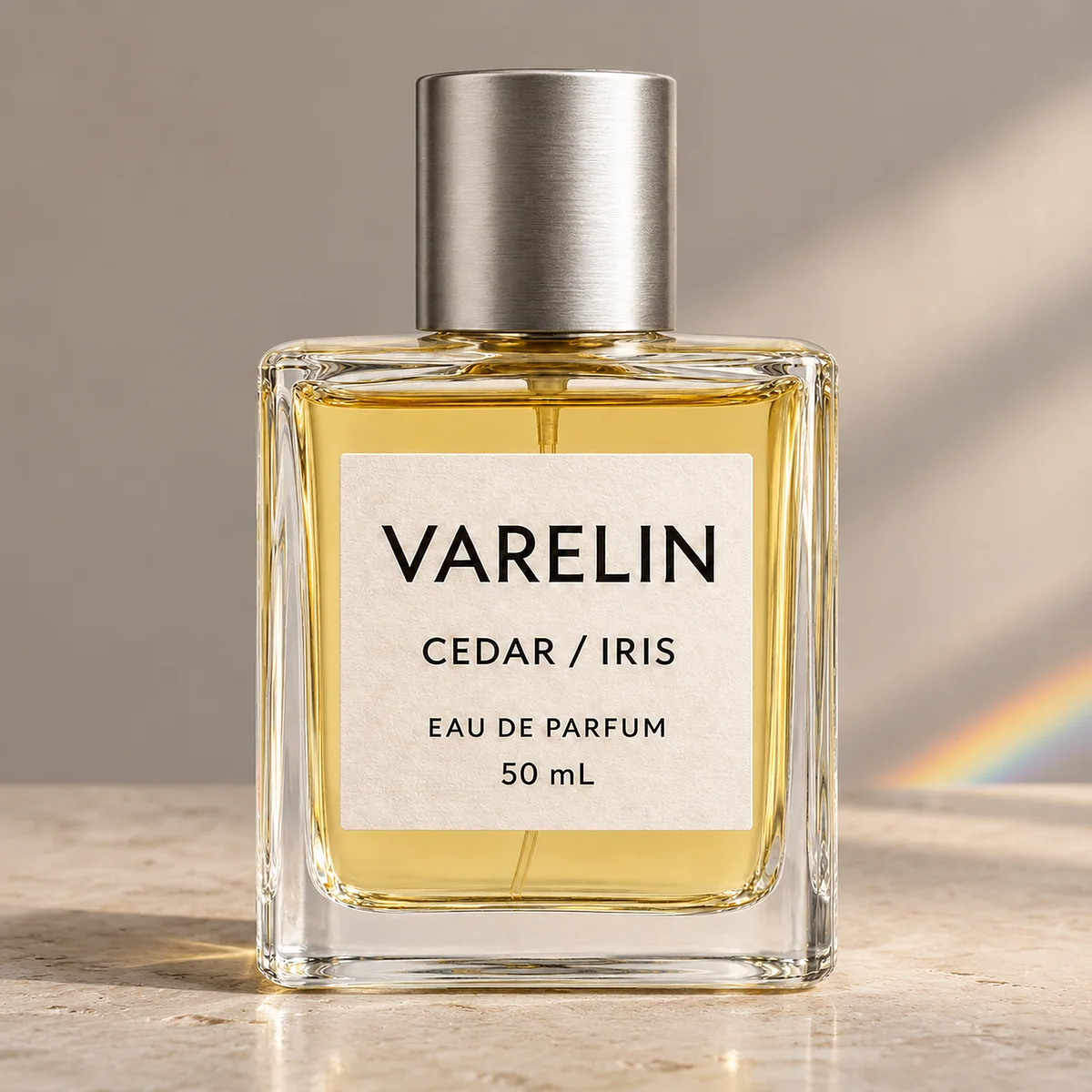
Run 3. The label sits in about the same place, with small changes in how the letters and paper look. The right glass edge picks up a cooler highlight. Open the 2048 × 2048 original.

Run 3, showing the bottle on limestone with changed glass reflections
Close-up of the unchanged wording and the paper texture in run 3

How to change the background without re-drawing the label

Generate an empty scene, cut out the product from the original photo, and place that layer on the scene. Put a soft shadow underneath on its own layer. With clear glass, zoom in on the rim and base to see whether any of the old background remains. The example below reuses the transparent PNG from this test.

The original transparent test bottle layered on an AI-generated stone backdrop

We also ran three edits with the same input and instructions in ChatGPT's ImageGen. All three kept the four lines readable. ImageGen result 1, result 2 and result 3 show those outputs. Both sets cover one fictional bottle with large, high-contrast print.

How to check whether your label changed

  • Read it first. Put the source and output next to each other and read the brand, product name, volume and unit. Zoom in on the smallest line. Count a substituted, missing or unreadable character as a failure if the source was readable.
  • Look at the packaging. Line up the label corners. Compare the lettering, spacing, cap shape, shoulder, glass edges and liquid level. Check artwork and lettering separately.
  • Check the export. Open the file at the size shoppers will see on a phone. Look for unreadable print, a visible cutout edge or a bottle that appears to float above the surface.

For this sample, we reduced the three workbench outputs to the source size for a pixel check. The average absolute RGB changes within the same label rectangle were 13.891, 10.971 and 8.525 on a 0–255 scale. Lighting, texture and resizing all contribute to these figures. We judged spelling by reading the original files.

The exact prompt used in the test

Use case: precise-object-edit. Edit the provided square photo of a fictional perfume bottle on transparency. Change only its surroundings. Place the exact same original bottle centered on a matte pale limestone tabletop with a warm gray wall and soft light from the right, base around 78% of the frame. A narrow subtle prism rainbow falls onto the rear-right stone, away from the label. Preserve the original front-on angle, outline, proportions, brushed silver cap, amber liquid level, original printed label geometry, paper and all four lines of its text, including the brand, perfume name, concentration text and volume exactly as shown. Maintain original typography, casing, punctuation and line order. Keep the entire bottle and the label clear; only add a gentle grounding shadow underneath. Do not introduce any extra text, logo, objects or watermark. Output one square photograph, opaque background.

For another starting point, browse the AI product image examples.

Related reading

Plan Black Friday Product Images with AI

Plan Black Friday product images with an AI-generated pouch example. Set the product layout and room for sale copy, then check what needs a real photo.

Make AI Cover Images That Still Make Sense on a Phone

Check an AI cover image at phone size. Use the lunar tram example to test composition, title space and differences between the prompt and the result.

Continue with the original template

View template and available settingsBack to creation guides